
The Text Highlights feature is a premium tool that allows you to directly mark and save specific paragraphs or sentences while reading. Whether it's a beautiful quote or a funny dialogue, you can highlight it just like a real book.
How to Highlight Text
Highlighting text on AO3 is designed to be seamless and intuitive on both desktop and mobile devices.
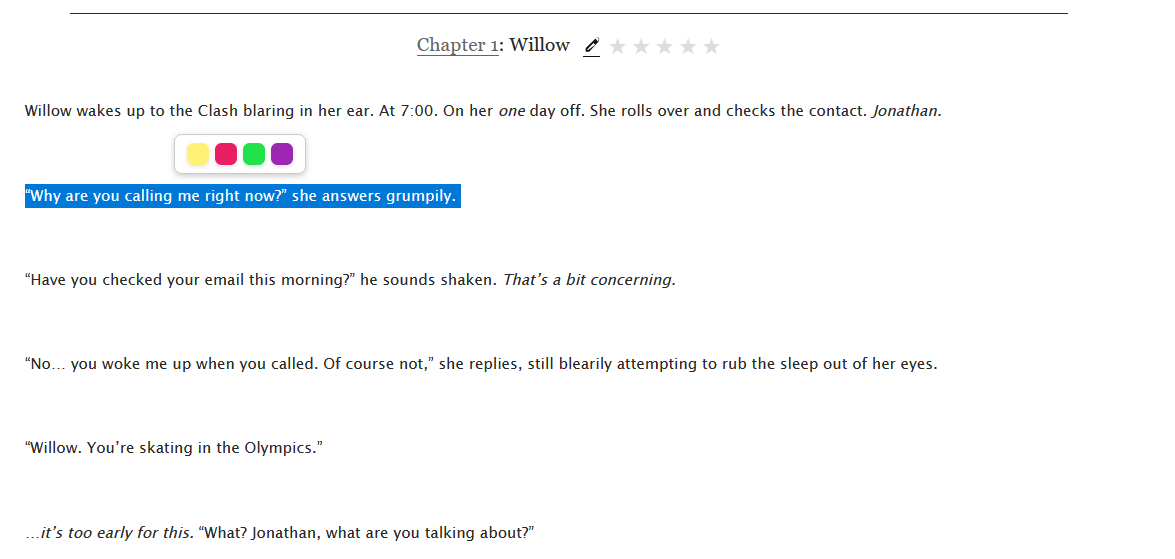
A. Selecting Text
Simply use your mouse (or finger on mobile) to select any piece of text within a fanfiction chapter. Once you lift your finger or release the mouse button, a Floating Color Menu will instantly appear near your selection.
B. Applying a Color
The floating menu provides 4 distinct colors: Yellow, Pink, Green, and Purple. Click on any of the color swatches to apply it to your selected text. The highlight is saved immediately!
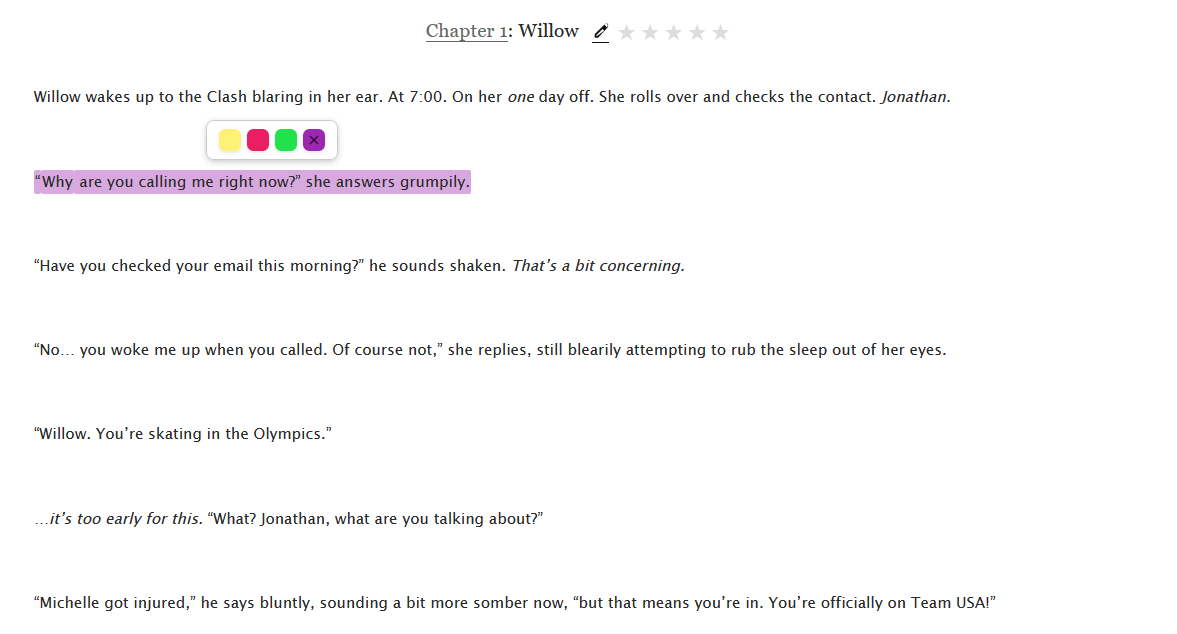
C. Removing a Highlight
To remove an existing highlight, simply click (or tap) on the highlighted text itself. The floating menu will reappear, showing an 'X' icon over the active color. Click the 'X' to remove the highlight completely.
The Scrollbar Minimap
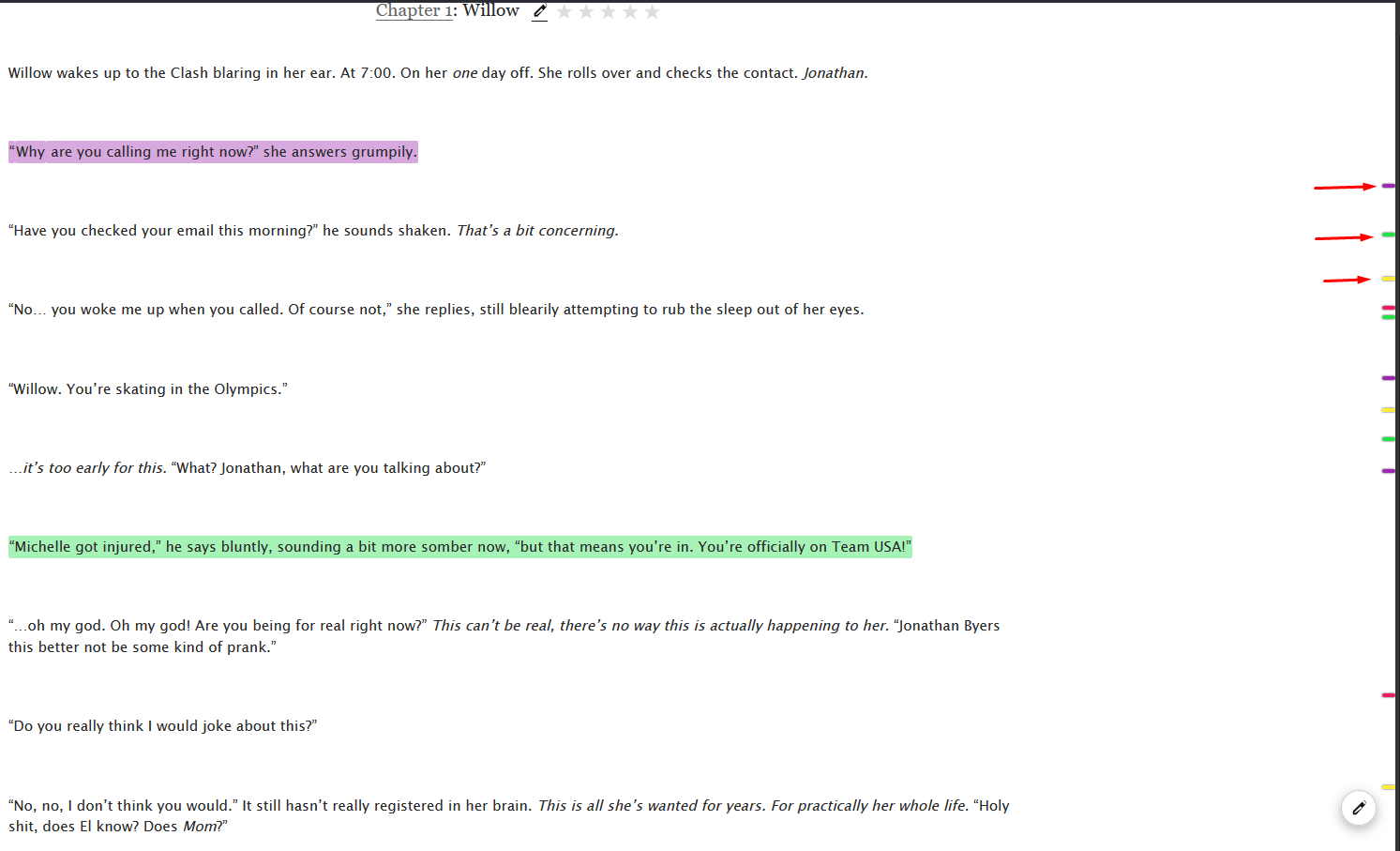
When you have highlights on a page, the extension automatically generates a Minimap on the right edge of your screen (along the scrollbar track).
The Minimap places small colored dots exactly where your highlights are located on the page relative to your current scroll position. This allows you to quickly visually scan a long chapter and scroll directly to your favorite quotes without having to read through the entire text again!
The Highlights Notebook
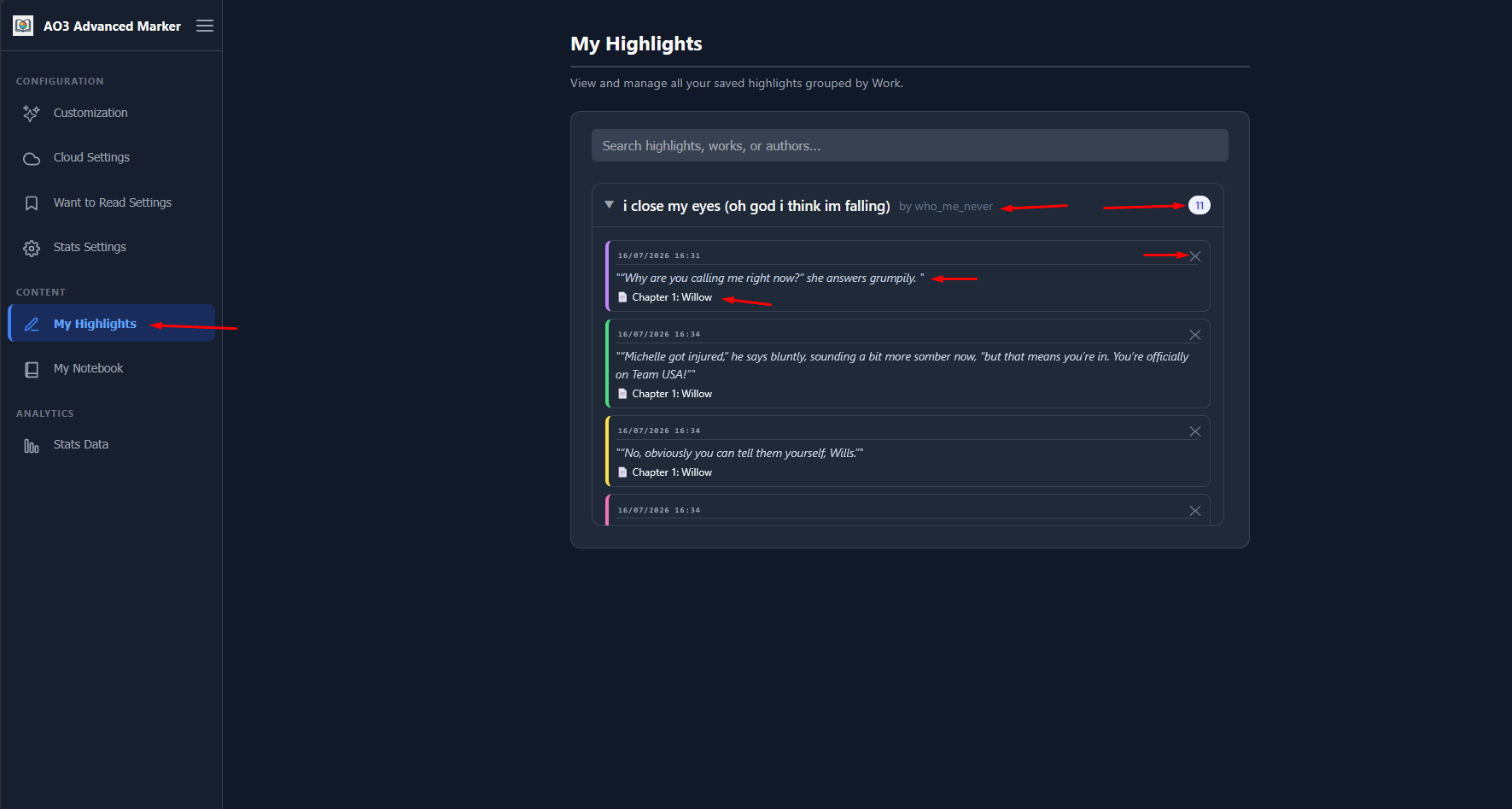
Just like Chapter Reviews, all your Text Highlights are collected in a centralized location for easy access.
Accessing the Highlights
Open the Options Page by clicking the extension icon. In the left sidebar, click on the My Highlights tab.
Managing Your Highlights
- Global Search: Easily search through all your highlights across all fanfictions to find that one specific quote you vaguely remember.
- Direct Links: Clicking a highlight entry in the notebook acts as a deep link. It will open the specific chapter on AO3.
- Cloud Sync (Drive): If you are a PRO user utilizing the Google Drive sync feature, your Text Highlights are deeply merged and safely synced across all your devices.