
The Google Drive integration provides seamless cross-device synchronization for your reading progress. Your data is stored privately inside a dedicated, hidden folder within your own Google Drive account, eliminating the need to manage third-party API keys or complex setups.
The Synchronization Logic & Multi-Device Rule
To ensure total control over your reading data and protect your progress from accidental overwrites when hopping between devices, synchronization remains semi-automatic:
- Automatic Backup: When turned on, the extension pushes your local markers to your Google Drive in the background every 24 hours.
- Manual Sync: Triggered via the dedicated buttons placed directly inside the Archive of Our Own (AO3) interface.
If you read on multiple devices (like your PC and a smartphone), enable Automatic Backup ONLY on your primary device (the one you use most often). Keep it disabled on secondary devices. When switching to a secondary device, click Download to sync your local state before reading.
Universal Setup (Desktop & Mobile)
Thanks to the new unified web flow, setting up your cloud connection is exactly the same across all devices and browsers (including Firefox for Android):
-
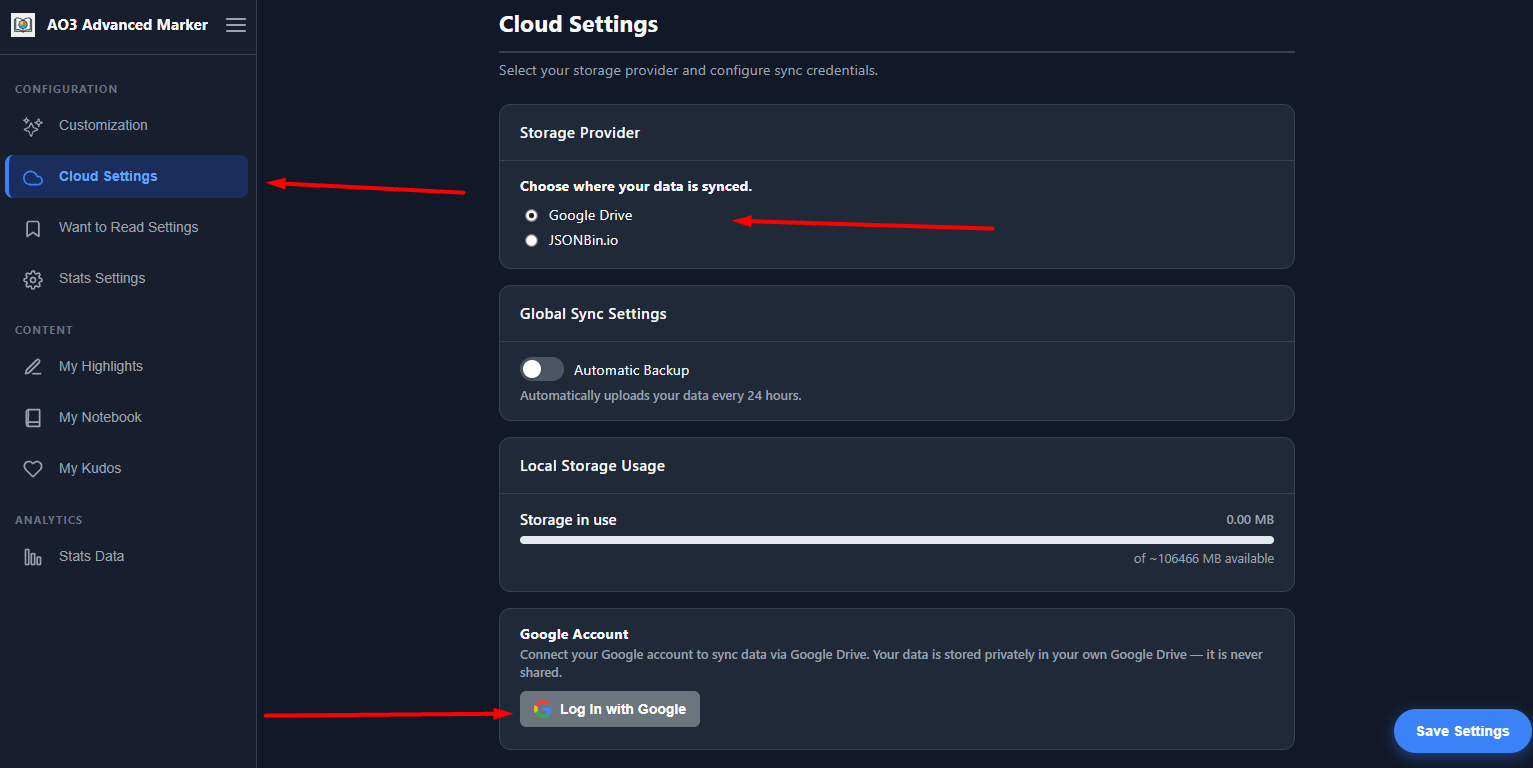
1Navigate to the extension menu and select the Cloud Settings tab.
-
2Under Storage Provider, select Google Drive.
-
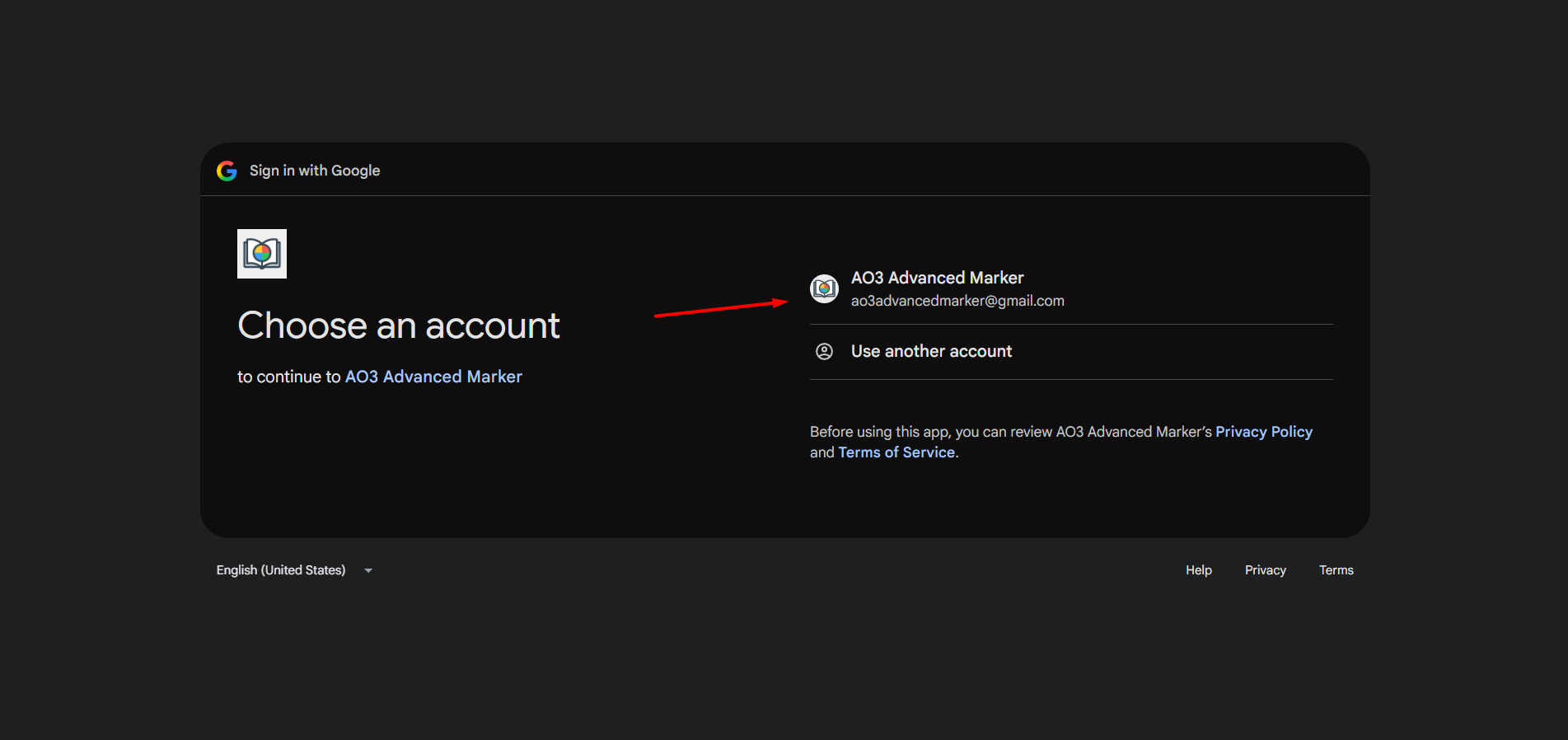
3Click Log In with Google. A new secure tab will open to handle your authentication.
-
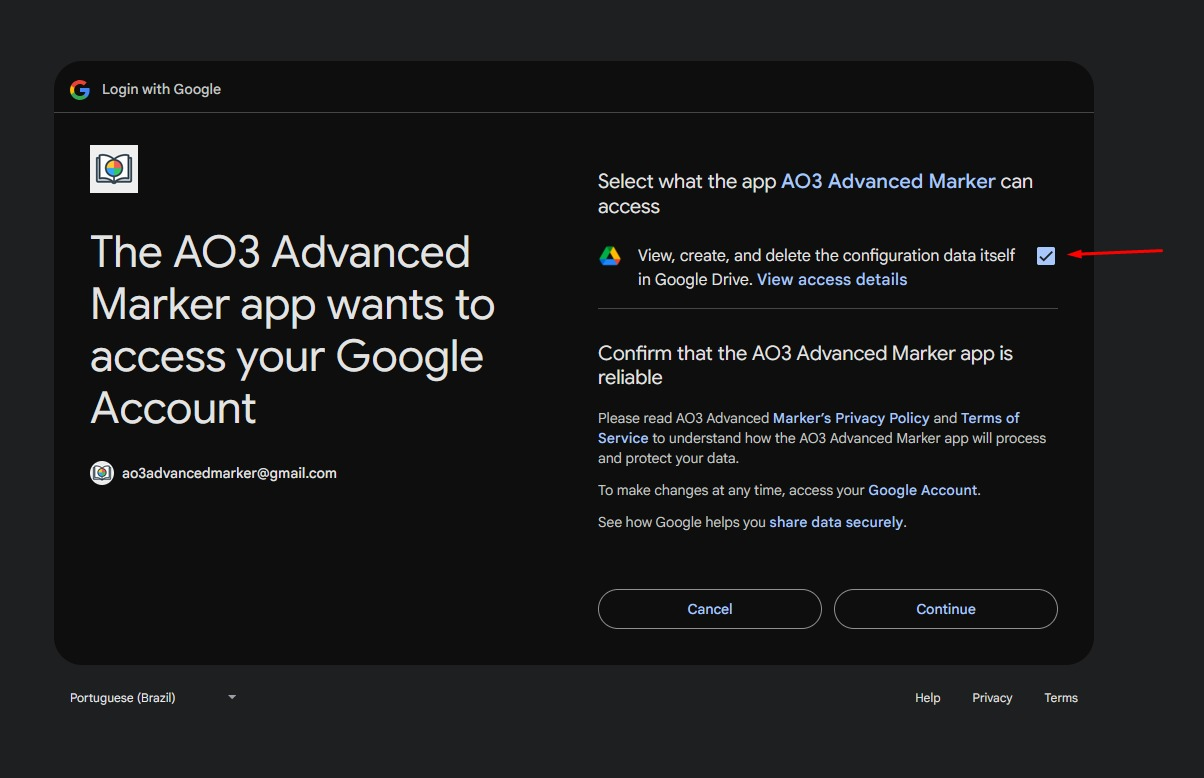
4After successful login, make sure to check the box granting the extension permission to access your Google Drive.
Using Sync Features Inside AO3
Once connected to your Google account, load any works list or history page on AO3. Look at the top bar labeled Marker Tools:
- Upload to Drive: Saves your current local state to your cloud folder. (Hidden when Automatic Backup is active.)
- Download from Drive: Pulls your cloud copy to refresh your active device history.

The extension only accesses its own dedicated appdata folder inside your
Drive. It cannot view, edit, or delete any other files. No data is shared with third
parties.